Create your OAuth app
goog signs in through an OAuth app in your own Google Cloud project. Set it up once, then log in to as many accounts as you like.
Create a Google Cloud project
Your OAuth app lives in a Google Cloud project that you own.
- a
Give the project any name and click Create.
- b
Already have a project you want to use? Select it in the project picker at the top of the console and go to the next step.
Enable the six APIs
Turn on the Google APIs that goog calls.
- a
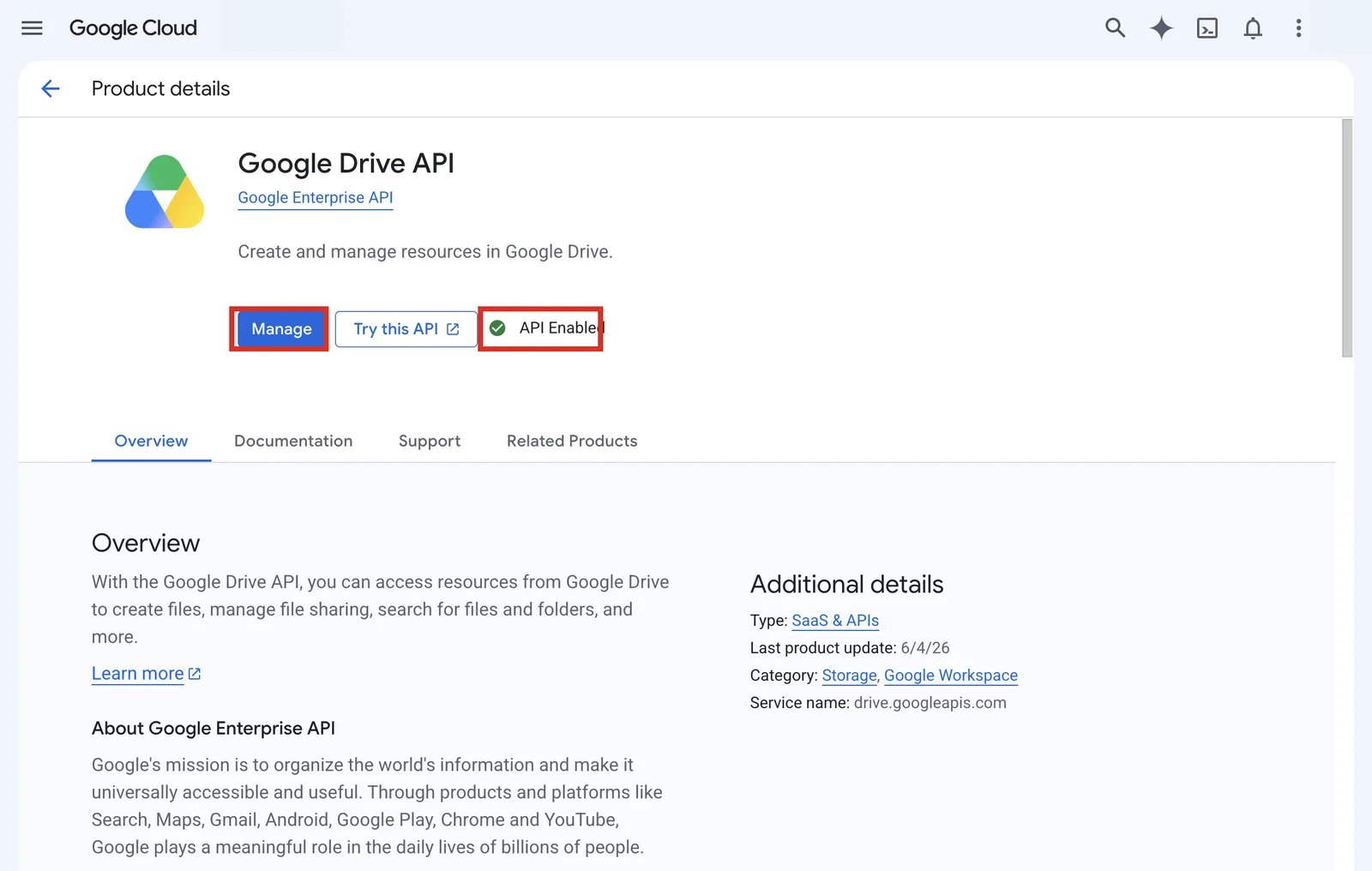
Open each API below and click Enable.
- b
If the page shows Manage and API Enabled, that API is already on.
- Google Drive APIEnable
- Google Docs APIEnable
- Google Sheets APIEnable
- Google Slides APIEnable
- Google Calendar APIEnable
- Gmail APIEnable
Set up the consent screen
This is the Google screen you see each time you log in to an account with goog.
- a
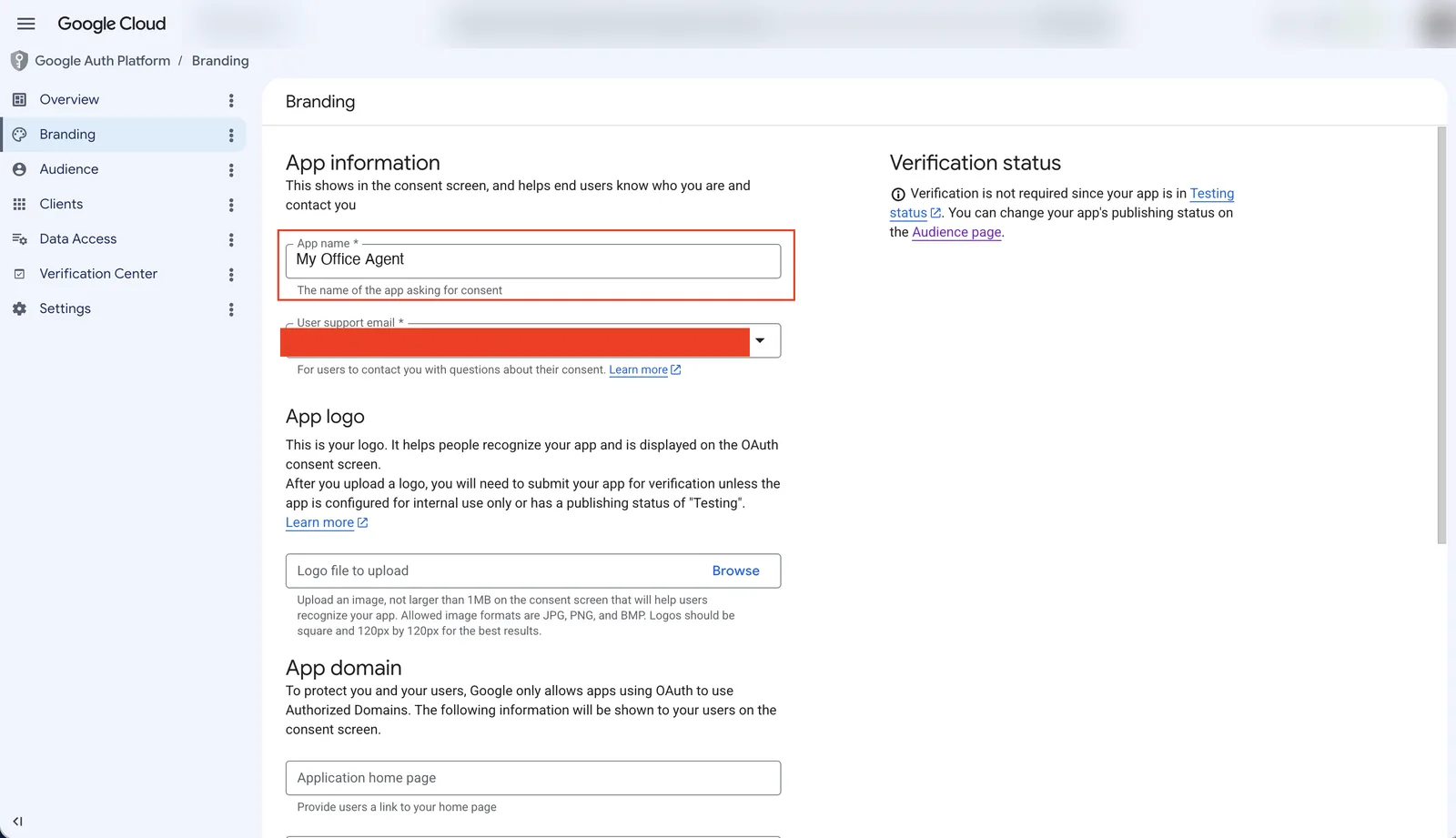
If the page asks you to get started, choose External as the audience.
- b
App name: any name, such as My Office Agent.
- c
User support email and developer contact: your email address.
- d
Leave everything else blank and save.
Add your accounts as test users
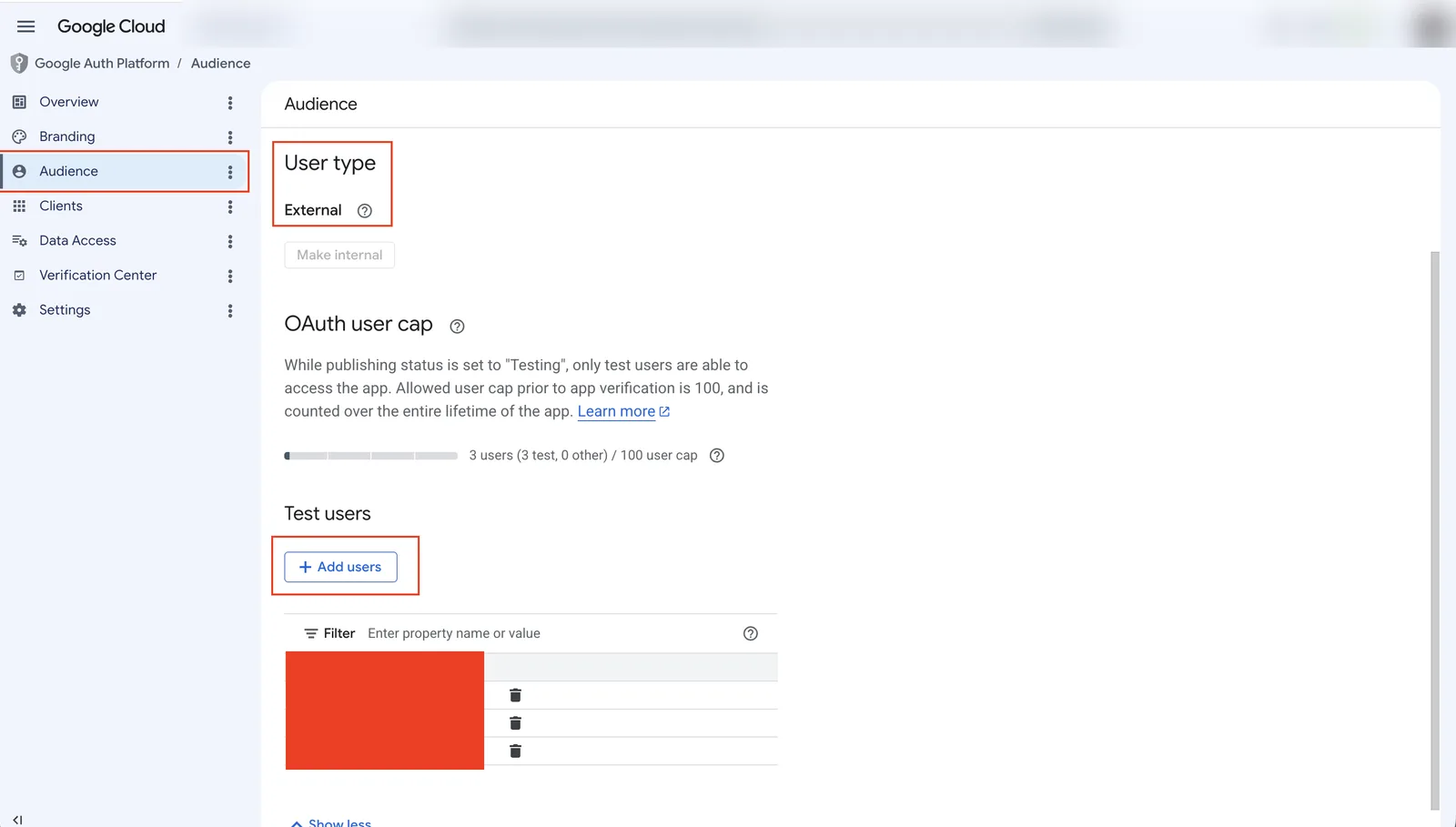
The app stays in Testing mode, so only accounts on the test user list can log in.
- a
Under Test users, click Add users.
- b
Add every Google account you plan to use with goog.
You can add more accounts later. Add each one here before you log in to it with goog.
Create an OAuth client
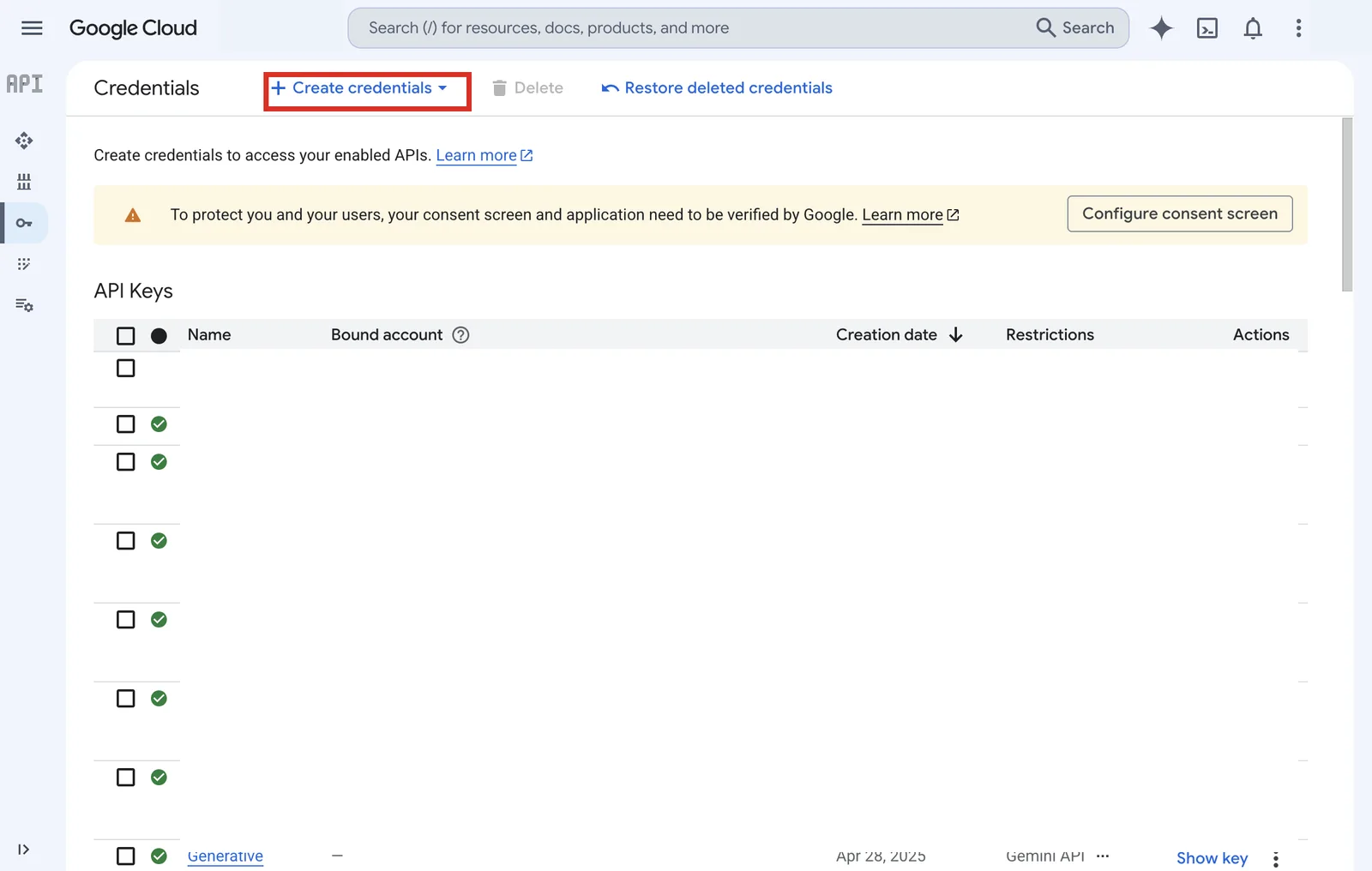
The client gives goog the ID and secret it signs in with.
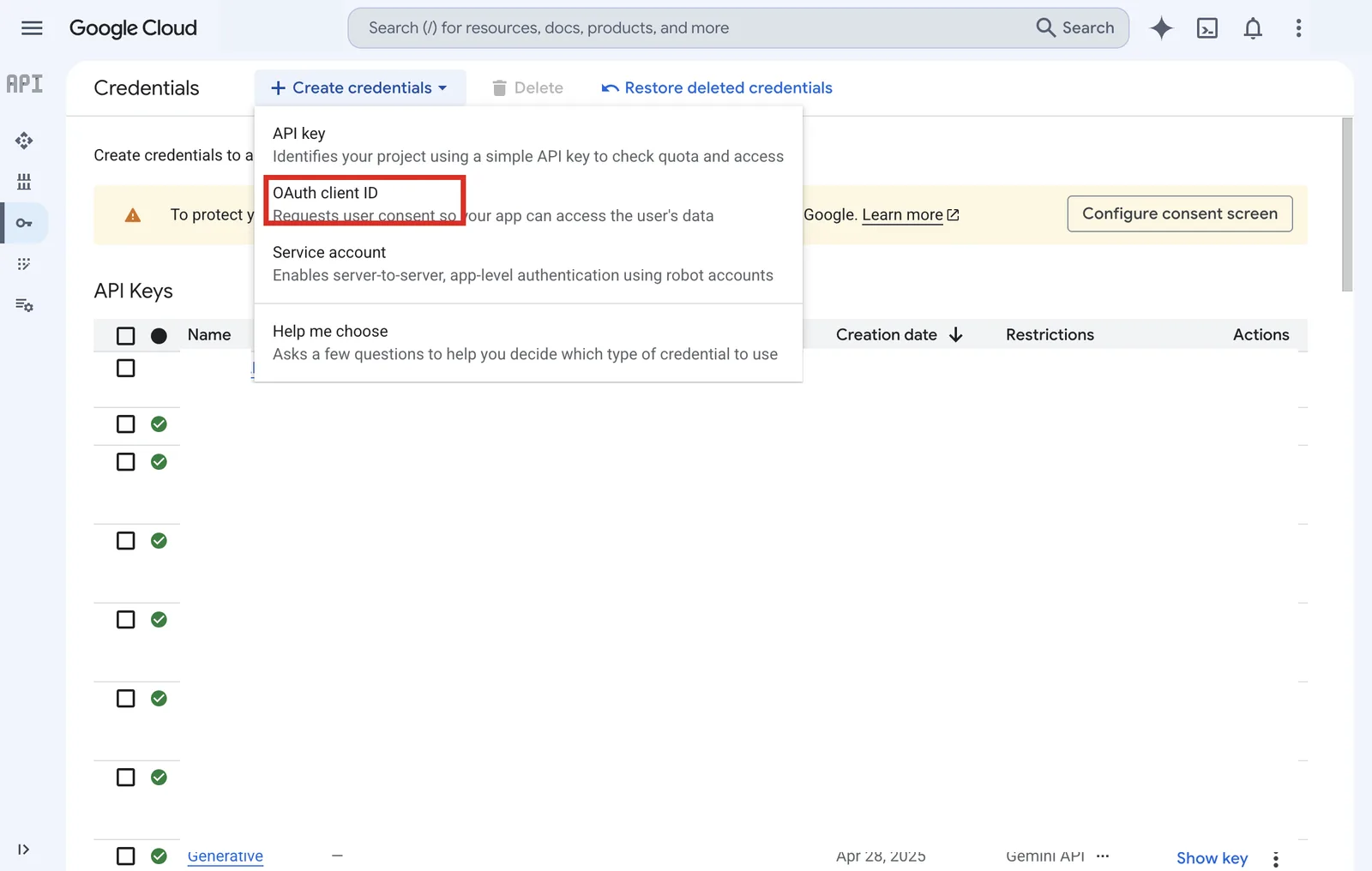
Choose Desktop app
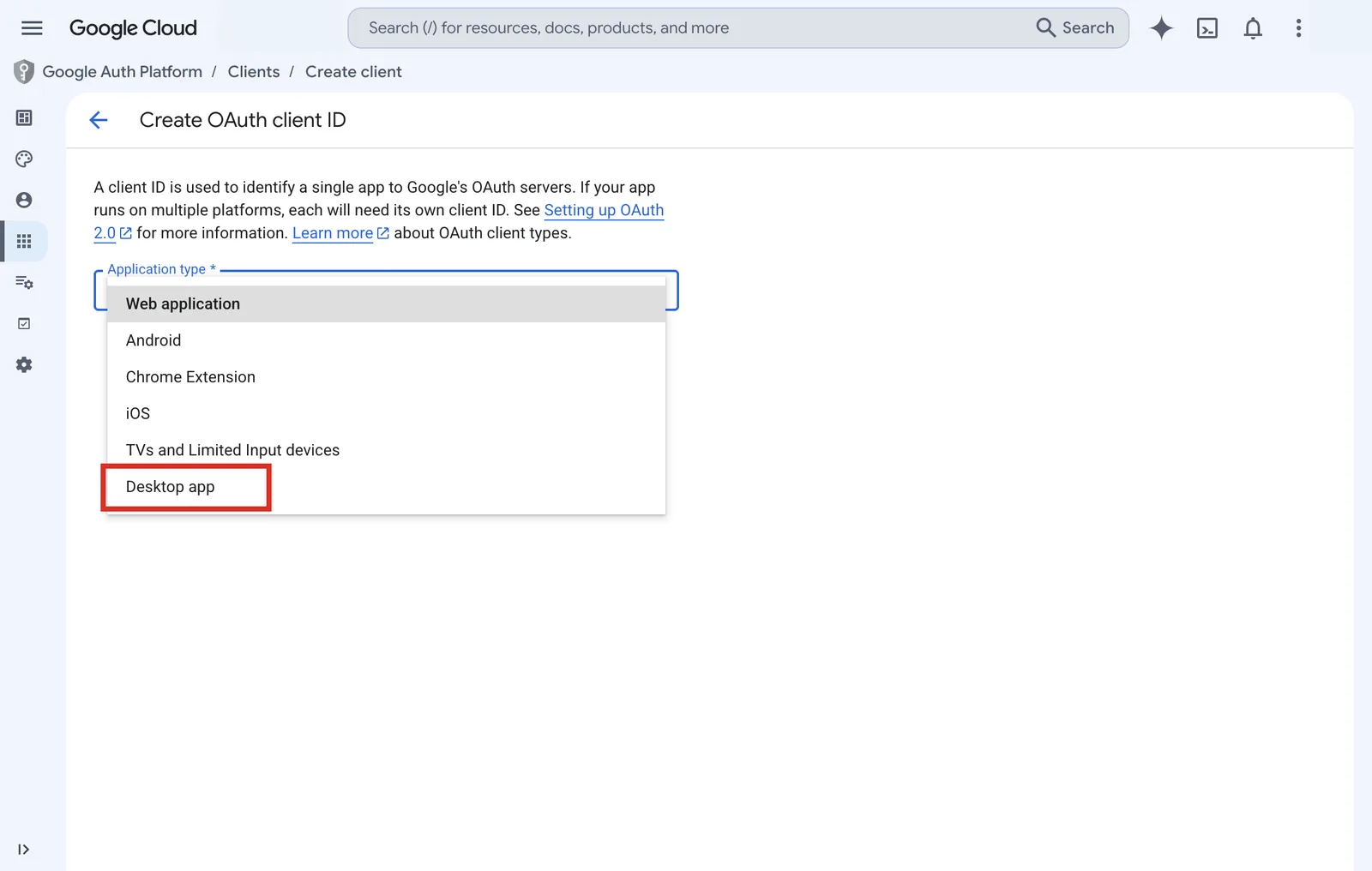
goog runs on your computer, so it uses the Desktop app type.
- a
Set Application type to Desktop app.
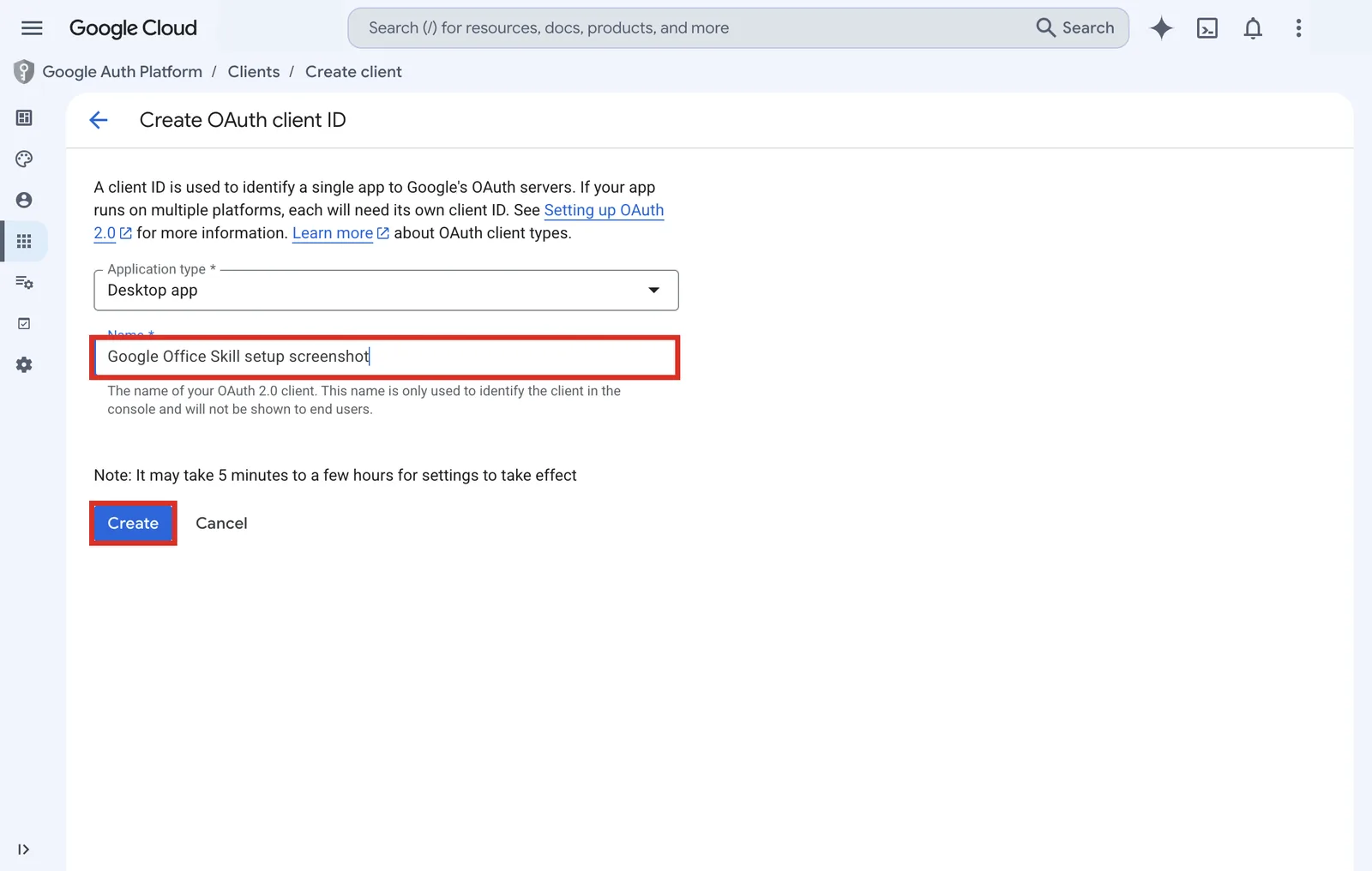
- b
Enter any name, then click Create.
Copy the client ID and secret
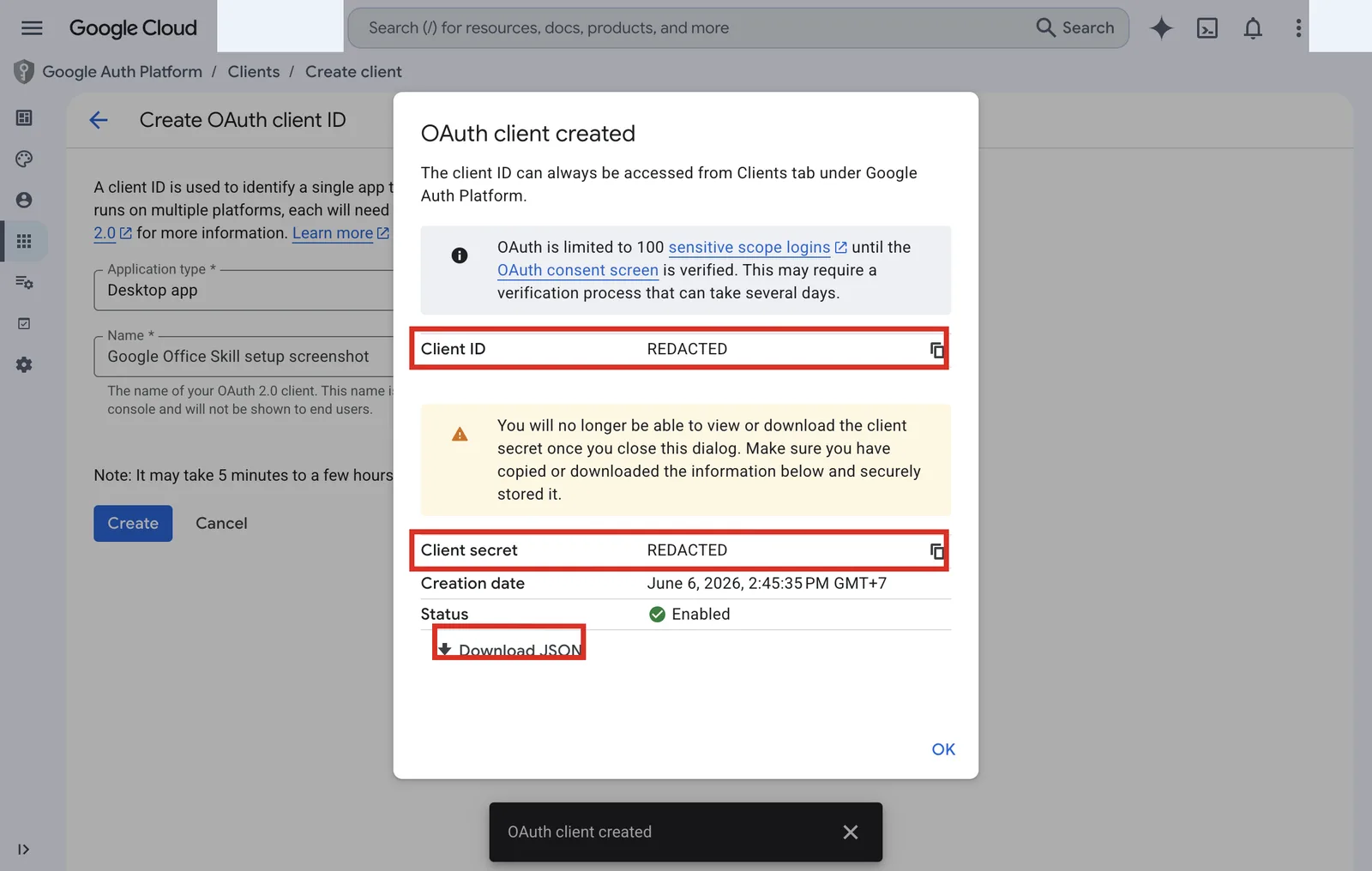
Google shows both values in a dialog right after it creates the client.
- a
Copy the Client ID. It ends in .apps.googleusercontent.com.
- b
Copy the Client secret. It usually starts with GOCSPX-.
- c
Or click Download JSON to save both in one file.
Google shows the client secret only once. Copy it or download the JSON before you close the dialog.
Connect goog
Give goog the client, then log in to each account once.
- a
Paste the client ID and secret when goog asks for them.
$goog auth setup - b
Or point goog at the downloaded JSON file.
$goog auth setup --client-secret-file ~/Downloads/client_secret_*.json - c
Log in to an account. Your browser opens the consent screen. Run it again for each account.
$goog auth login - d
Check that every account is listed.
$goog auth list